Palworld: How to Install Steam Workshop Mods on Your Server
How to add Steam Workshop mods to your DatHost Palworld server with Palworld's own mod loader, turn them on, and check that they installed.
This is one of two ways to mod a Palworld server. For mods from Nexus Mods or other sites, see Palworld: How to Install Mods on Your Server. Use one way or the other, not both. Each brings its own copy of UE4SS, and two copies at once can stop your server from starting.
In this article
Before you start: back up, and check two settings
Before you start: back up, and check your settings
- Make a backup. Mods can change your world save. Open Backups and click Backup now.
- Server Platform. Workshop mods only run on the Windows version of the Palworld server. Open Settings, search for Server Platform, and set it to Windows (For UE4SS Mods). Your server still runs on our Linux machines; the Windows version runs on them through Wine.
- Character File System. In Settings, on the Experimental tab, Character File System must be -nosteam for the Windows platform. That's the default. If your server is on Disable -nosteam, changing it resets all character progress on your world. Make a backup and contact support before you change it.
- RE-UE4SS off. On the Mods page, keep the RE-UE4SS switch off. That's for downloaded mods only.
How to install a Workshop mod
The panel can't download Workshop mods from an ID, so you upload them from your PC.
- Subscribe to the mod on the Steam Workshop. If the mod needs other mods, Steam lists them when you subscribe. Subscribe to all of them. Most mods need UE4SS Experimental, and some also need PalSchema. Then start Palworld once so Steam finishes the downloads.
- On your PC, find each mod in
steamapps\workshop\content\1623730\<workshop-id>. By default that's inC:\Program Files (x86)\Steam\. If Palworld is in another Steam library, use that library'ssteamappsfolder. Check that it works on servers: open the mod'sInfo.json. UnderInstallRuleit should say"IsServer": true. If it doesn't, the mod isn't made for servers, and each player installs it on their own PC instead. - On your server, stop the server, then click Files in the left menu to open the File Manager.
- Open the top-level
Modsfolder, next toBinaries,ContentandSaved(not theModsfolder insideBinaries). Create aWorkshopfolder if there isn't one, and in it a folder named after the Workshop ID. - Upload the contents of the mod's Workshop folder into that ID folder.
Info.jsonmust be directly inside the ID folder, not in another folder inside it. Do the same for each mod it needs, such as UE4SS Experimental, each in its own ID folder.
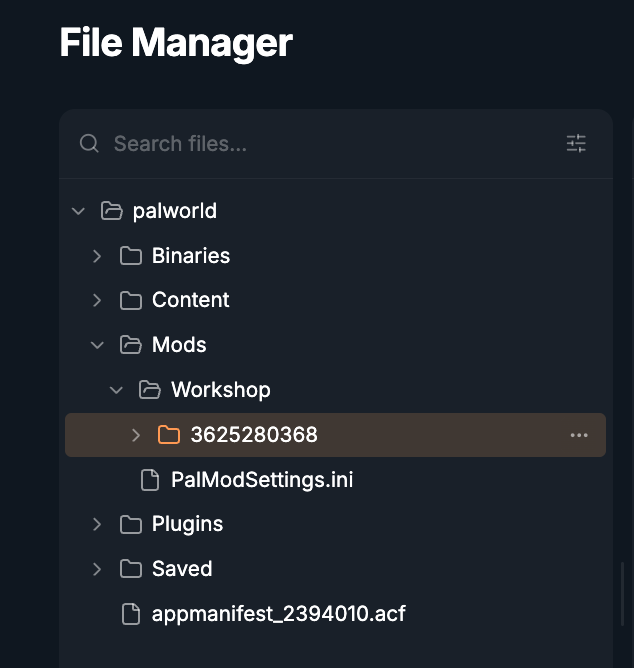
- Open Mods/PalModSettings.ini. If it isn't there, start the server, join it once, then stop it and look again.
- Keep
bGlobalEnableMod=true. - Leave any
WorkshopRootDirline as it is. - Add
ActiveModList=<PackageName>, using thePackageNamefrom each mod'sInfo.json. Add oneActiveModList=line for each mod, including UE4SS Experimental and any other mods it needs.
- Keep
- Click Save (Ctrl-S) and start the server.
For example, the lines for two mods look like this:
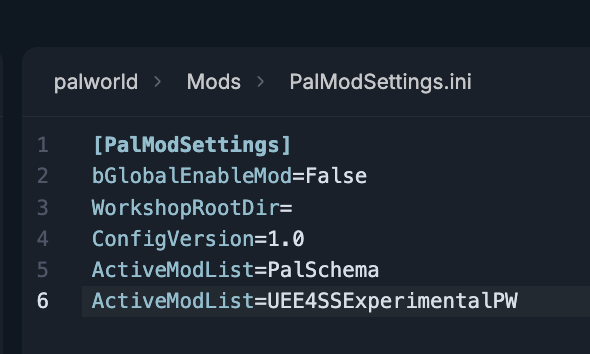
If a mod needs UE4SS or PalSchema, install those from the Workshop the same way (UE4SS Experimental and PalSchema), and add them to ActiveModList too.
Check that it installed
After the restart, Palworld creates Mods/ManagedMods/<PackageName>/InstallManifest.json . If it's there, the mod was installed.
Palworld puts the mod's files in Mods/NativeMods and Content/Paks/~WorkshopMods itself. Don't edit those folders.
Turn a mod off or update it
- To turn a mod off, remove its
ActiveModList=line and restart. - After a Palworld update, mods often stop working or crash the server until their creators release a fix. When the mod updates on the Workshop, start Palworld on your PC so Steam downloads it, then upload the new files over the old ones in the ID folder and restart. If there's no update yet, turn the mod off until there is.
Players' PCs
Some mods are needed on both the server and every player's PC. The mod's page says which. Each player subscribes on the Workshop, turns the mod on in Palworld under Options > Mod Management, and restarts the game.
Console players can't install PC mods. If players also need a mod, Xbox and PlayStation players may not be able to join.
Troubleshooting
A Workshop mod doesn't load.
- Check that Server Platform is Windows (For UE4SS Mods).
- Open the mod's
Info.jsonand check for"IsServer": trueunderInstallRule. Without it, the mod doesn't run on servers. - Check that the
ActiveModList=line uses thePackageNamefromInfo.json, not the folder name or Workshop ID. - Check that
Info.jsonis directly insideMods/Workshop/<workshop-id>/. - Check that any mods it needs, like UE4SS or PalSchema, are installed and in
ActiveModListtoo. - After a restart, look for
Mods/ManagedMods/<PackageName>/InstallManifest.json. If it isn't there, the mod wasn't installed.
The server won't start or keeps crashing.
- Make a backup: Backups > Backup now.
- Stop the server.
- In Mods/PalModSettings.ini, set
bGlobalEnableMod=false, and check that RE-UE4SS is off on the Mods page. - Start the server. If it works, set
bGlobalEnableMod=trueagain and add yourActiveModList=lines back one at a time to find the mod causing it.
The mod is on the server but nothing changes in game. It may be a client-side mod. Each player needs to install it on their own PC.
Common questions
Can I add a Workshop mod by entering its ID? No. The panel has no box for Workshop IDs. Upload the mod's folder as described above.
Can I use Nexus mods as well? Not at the same time as Workshop mods. Check whether the mod also has a Workshop version. If you only use downloaded mods, follow Palworld: How to Install Mods on Your Server instead.
Can you install a mod for me? We can check why a mod doesn't load, but we can't guarantee that third-party mods work.