Minecraft: How to Install Addons on a Bedrock Server
This guide explains how to install custom Bedrock addons (.mcpack / .mcaddon) on your dedicated server.
1. Prepare the Addon Files
- 1
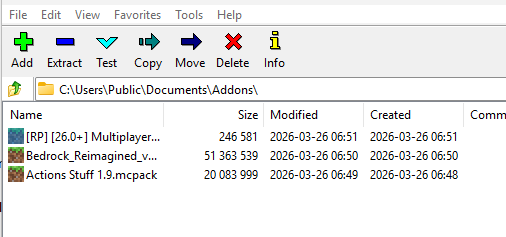
- Download your addon file (.mcpack or .mcaddon ) to your computer.
- 2
- Extract the file using a tool like 7-Zip or WinRAR.
- 3
- Inside, locate the folder containing manifest.json
- 4
-
Identify pack types:
- Behavior Pack → contains "type": "data"
- Resource Pack → contains "type": "resources"
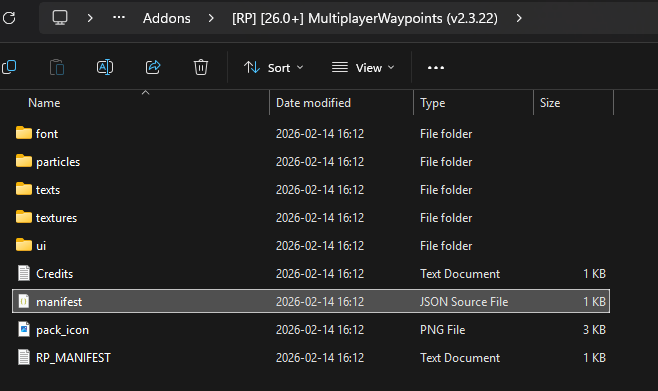
Note: Some addons include both - make sure you separate them correctly
2. Upload Files to Your Server
- 1
- Stop your server.
- 2
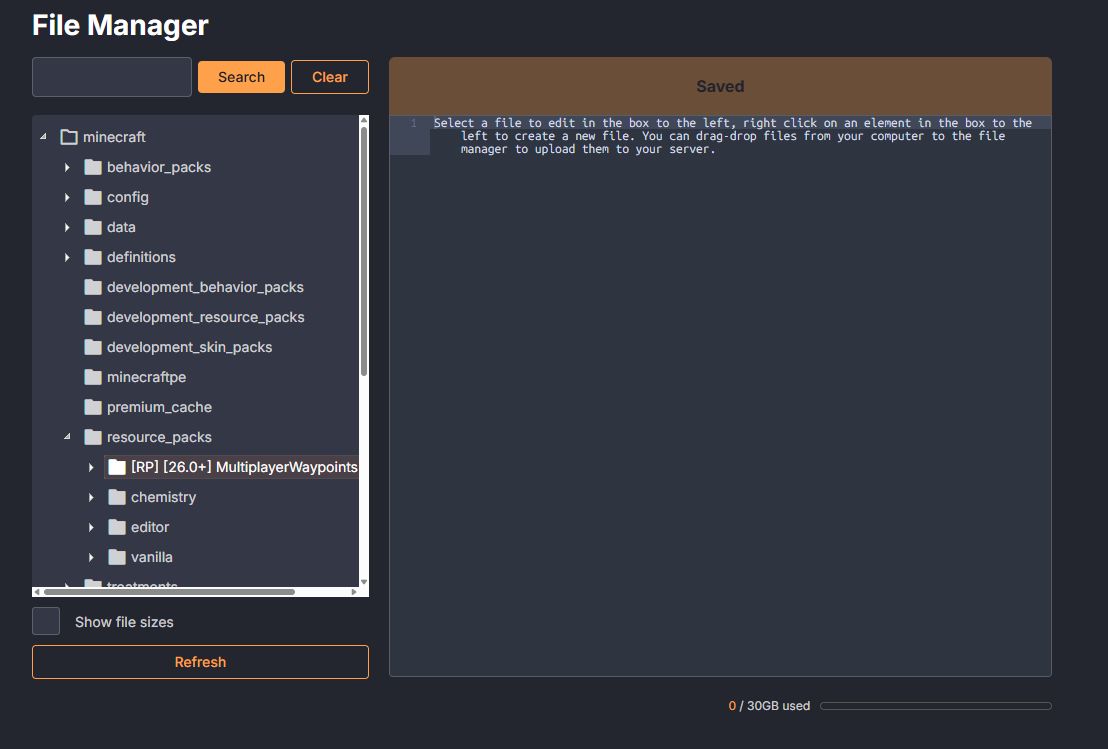
- Open the File Manager or your FTP client.
- 3
-
Navigate to:
behavior_packs/(ordevelopment_behavior_packs/)resource_packs/(ordevelopment_resource_packs/
- 4
-
Upload:
- Behavior pack →
behavior_packs/ - Resource pack →
resource_packs/
- Behavior pack →
3. Activate Addons in Your World
- 1
-
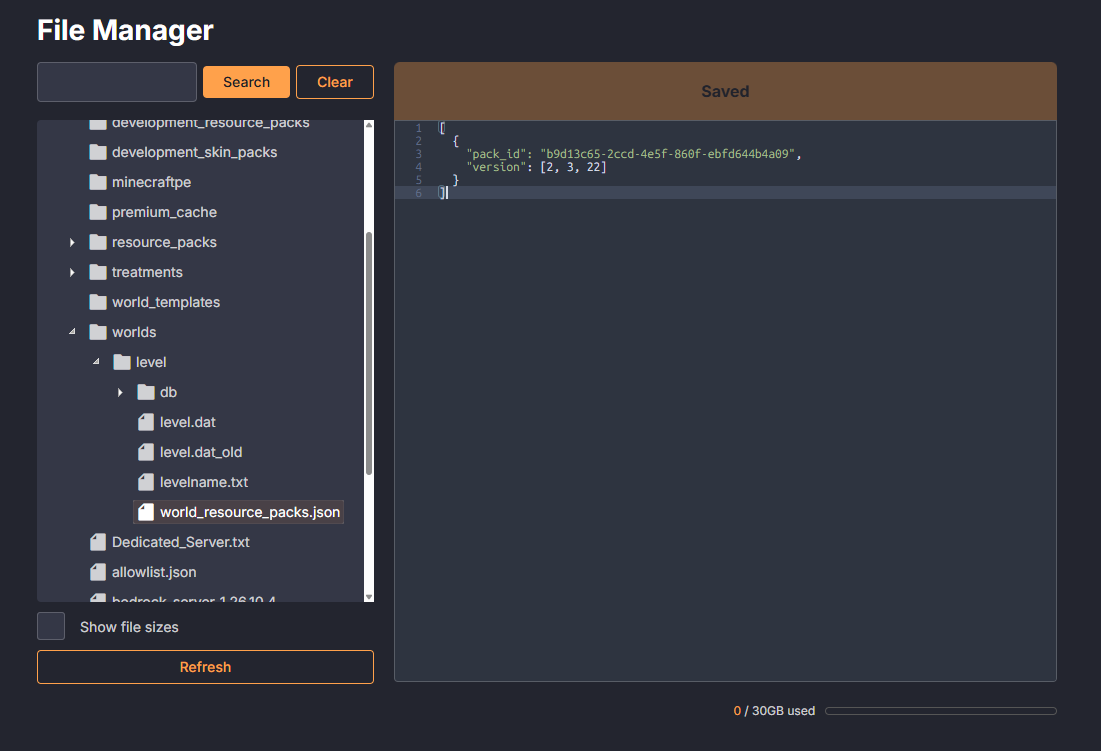
Go to your world folder:
worlds/"your-world-name"/ - 2
-
Open or create:
world_behavior_packs.jsonworld_resource_packs.json
- 3
-
Open the addon’s manifest.json and copy:
uuidversion
- 4
-
Add them like this:
[{"pack_id": "YOUR-UUID-HERE","version": [1, 0, 0]}] - 5
- Repeat for both behavior and resource packs.
Note: Some addons require experimental features to be enabled. These can be added
- Creating the world in single player and uploading it to the server
- (Advanced) Using an NBT editor: https://wiki.bedrock.dev/nbt/experimental-education-edition.html
5. Start the Server
Alternative Method (Easier Setup)
- 1
-
Import the
.mcaddoninto your local Minecraft. - 2
- Create a new world and enable the addon.
- 3
-
Export the world as
.mcworld . - 4
- Upload it to your server and replace your current world.
Important Notes
- Marketplace addons usually do NOT work on dedicated servers
- UUID must match exactly or the addon won’t load
- Always backup your world before installing addons
Troubleshooting Tips
- Addon not loading?
- Check JSON formatting (no missing commas)
- Verify UUID/version matches
manifest.json
- Server crashes?
- Remove the addon and restart
- Check if experimental features are required
- Missing textures?
- Resource pack may not be installed or linked correctly