Windrose: Connect to Server
This guide explains how to connect to your Windrose server hosted on DatHost using two supported methods: Invite Code and Direct IP Connection. Follow the steps below to join your server quickly and reliably.
Connect Using Invite Code
The invite code method is the easiest way to join your server.
Steps:
- Open your server in the DatHost Control Panel.
-
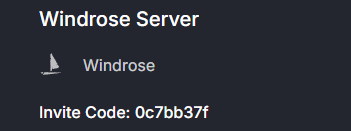
Locate the Invite Code in the top-left corner.
- Launch Windrose.
- Click Play → Connect to Server.
-
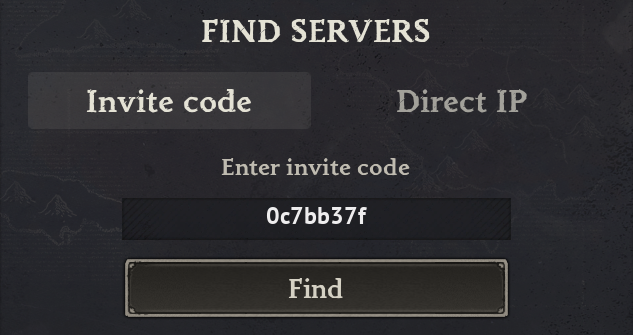
Paste the invite code and wait while the game locates the server.
- If your server is password protected, enter the password.
- Click Connect.
Connect via Direct IP Address
Use this method if you prefer manual connection or if the invite code isn’t working.
Steps:
- Open your server in the DatHost Control Panel.
- Go to Settings.
-
Enable Use Direct IP Connection.

- Click Save & Reboot to apply the changes.
-
After rebooting, your invite code will be replaced by an IP address and port.
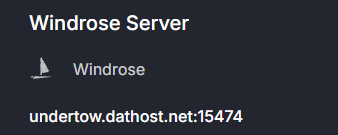
- Copy or note both values.
- Launch Windrose.
- Click Play → Connect to Server.
- Switch to the Direct Connection tab.
- Enter:
- IP Address (from step 5)
-
Port (from step 5)
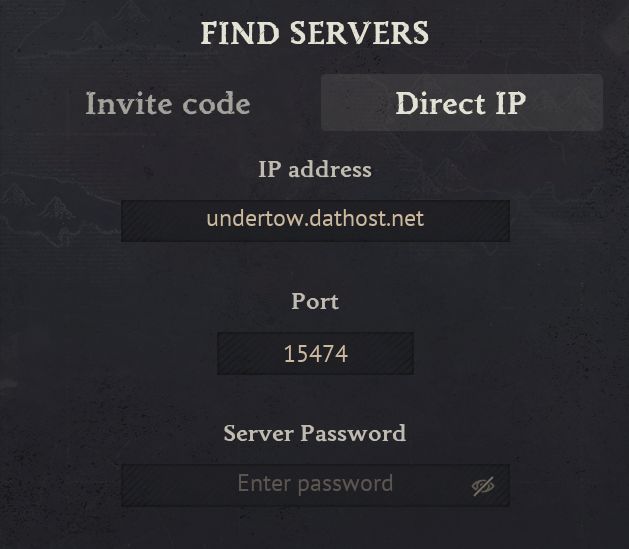
- Enter the server password if required.
- Click Connect via IP.
Troubleshooting Tips
- Server not found: Ensure the server is running in the DatHost panel. If the issue persists, check the Console tab for any errors.
- Wrong password: Re-check the password set in your server settings.
- Connection timeout: Try switching between Invite Code and Direct IP methods.
- Direct IP not working: Confirm you enabled the setting and rebooted the server.
By following this guide, you’ll be able to connect to your Windrose server quickly and get back to playing without delays.