Runescape: Connect to Server
This guide explains how to connect to your RuneScape: Dragonwilds server hosted on DatHost. Follow the steps below to quickly join your world and start playing.
Prerequisites
Before connecting, make sure:
- Your server is running
- You have set a unique World Name in your server settings
This is important—your server is discovered using this name
Step-by-Step: Connect to Your Server
- 1
-
Set a Unique World Name
- Navigate to your server settings
- Set the World Name to something unique and easy to search
- Save changes and start your server
Note: Avoid common names like “Test” or “Server1” to prevent confusion when searching.
- 2
-
Launch RuneScape: Dragonwilds
- Open the game client
- From the main menu, click Play
- 3
-
Switch to the Public Server List
- Navigate to the Public tab
- This displays all publicly available servers
- 4
-
Search for Your Server
- Locate the Search World Name field
- Enter the exact World Name you configured earlier
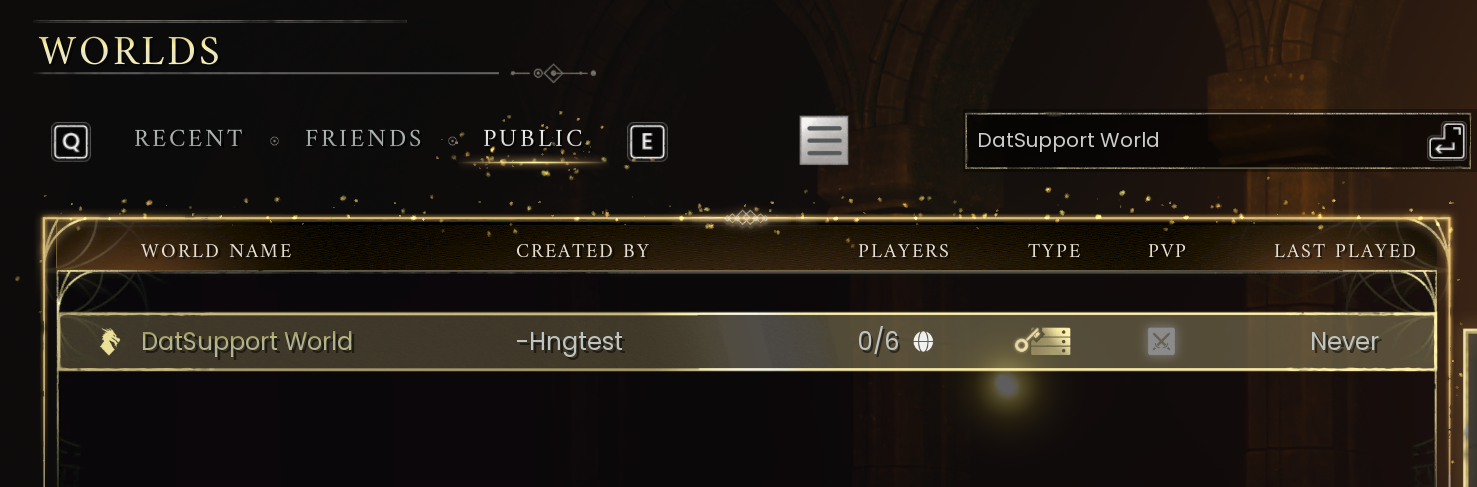
Note: If your server doesn't appear immediately, wait a few moments and try again.
- 5
-
Search for Your Server
- Select your server from the list
- Click Enter World
You are now connected to your RuneScape: Dragonwilds server 🎮
Troubleshooting
If you cannot find or connect to your server:
Server not showing in the list
- Ensure the server is online
- Double-check the World Name spelling
- Wait 1–2 minutes after startup for the server to appear
Connection issues
- Restart the game client
- Verify there are no network restrictions (firewall, VPN, etc.)
- Restart your server from the DatHost panel